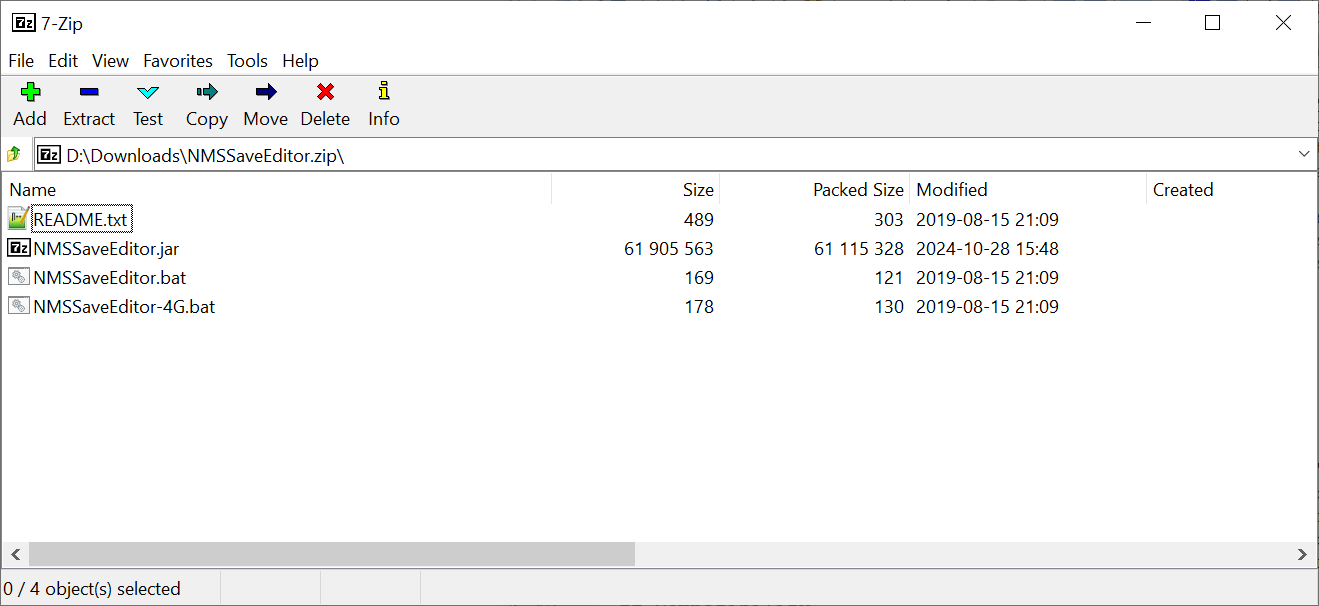
Download the Windows archive first
For most Windows installations, this is the fastest route. After you extract the archive, you will usually find an EXE. Some updates include an MSI instead, depending on how the build was packaged.
If you have not downloaded the files yet, start on the Download and install page.
Extract first, then launch
This is the biggest avoidable mistake in the Windows workflow. Do not run the editor from inside the ZIP or from a temporary extraction view. Put the files in a normal folder first, then launch from there.
The practical pattern is simple:
- Download the Windows archive.
- Extract it to an empty folder.
- Launch the included EXE or MSI.
Open the correct save folder
When the editor starts, the next job is not “edit everything.” The next job is to open the right save folder and pick the save you actually mean to change.
For a normal Steam or GOG install, start here: %AppData%\HelloGames\NMS.
If you need paths for other launchers or systems, use the Download and install page or the dedicated Find your save files guide.
That extra minute matters. A surprising amount of confusion comes from opening the wrong folder or assuming the most recent save is somewhere else.
Make one small test edit first
Do not turn your first launch into a huge repair session. Make one narrow change, save it, load the game and confirm that the change actually appears where you expect it to.
That test proves four things at once:
- you launched the correct build,
- you opened the correct save,
- the editor can write the change,
- the game is reading the same save you just edited.
Once that loop works, deeper edits become much safer.
Turn off Windows Defender real-time protection
Some antivirus programs flag the Windows archive or the EXE or MSI inside it as suspicious. If that happens, turn off Windows Defender or your antivirus, download the archive again, then extract it and run the included EXE or MSI.
The shortest Windows Defender path is:
- Open Start or Search.
- Type
Windows Securityand open it. - Click
Virus & threat protection. - Under
Virus & threat protection settings, clickManage settings. - Turn
Real-time protectionoff. - Click
Yesif Windows shows a User Account Control prompt.
After that, download the archive again, extract it to a clean folder and run the included EXE or MSI.
If you do not want to use compiled files, download the source code from GitHub and build it yourself.
If the app still does not start
Work through these checks in order before you assume the whole editor is broken:
- Confirm that you extracted the archive fully and are launching the included EXE or MSI from a normal folder.
- Download the archive again after turning off Windows Defender or your antivirus, then try a fresh extraction.
- Check whether Windows Security quarantined the file after extraction and restore it if needed.
- If the editor opens but cannot see your progress, make sure you pointed it at the correct save folder and selected the newest save.
If the problem is save detection, use Find your save files.
If the app opens but you are worried about breaking something next, use the Safe editing checklist.
If you are dealing with a launch error, missing data or a patch-day problem, check FAQ and troubleshooting.